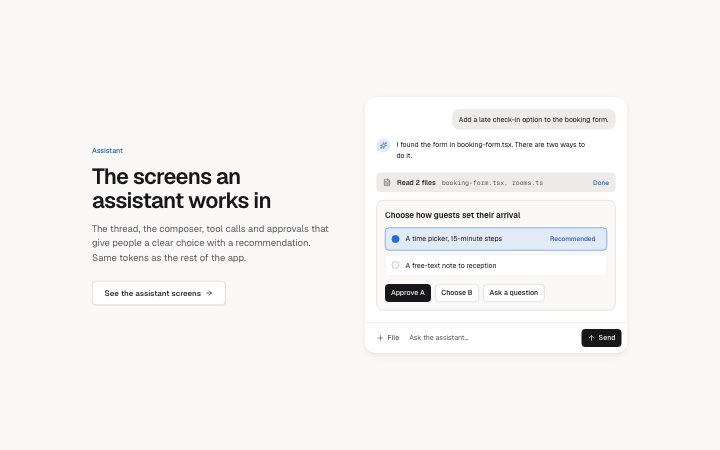
The screens an assistant works in: the thread, the composer, tool calls and approvals.
7 screens
The screens an assistant works in: the thread, the composer, tool calls and approvals.
7 screens
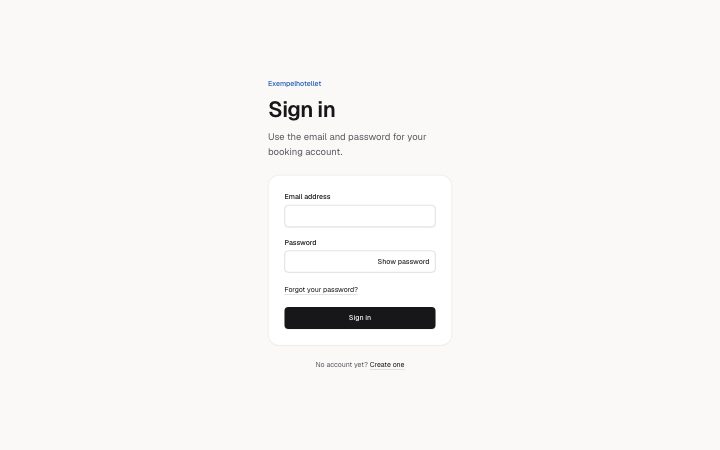
Getting a person in: sign in, sign up with consent, a password reset, a one-time code, and a magic link that needs no password at all.
5 screens
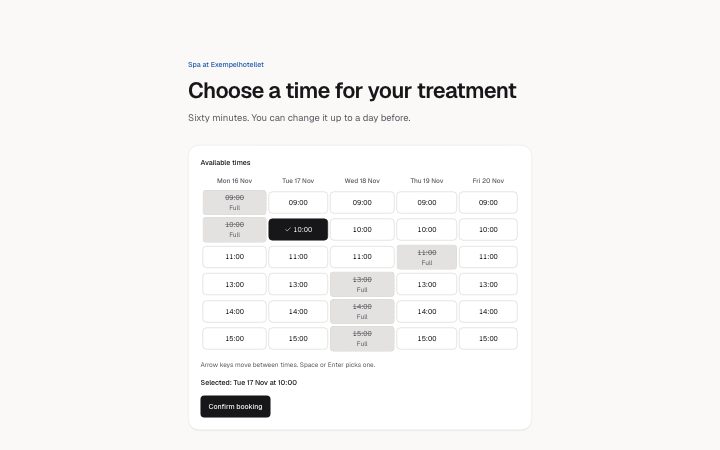
Choosing and seeing times: a slot picker that works by keyboard, and a month calendar with its events that becomes an agenda in narrow spaces.
2 screens
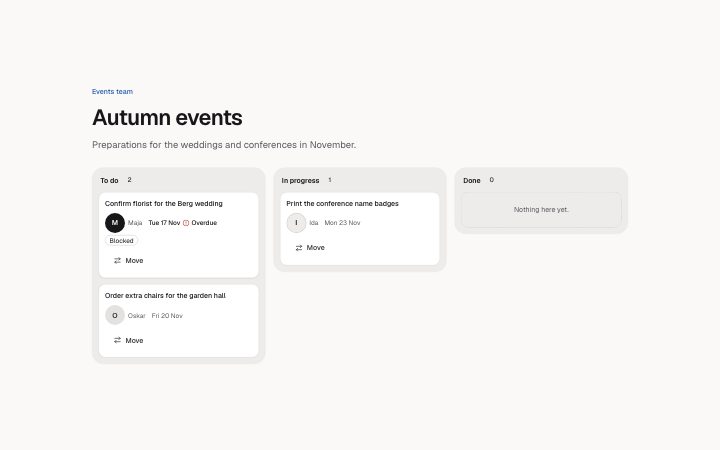
Work that moves through stages: a kanban board where every card can be moved with a menu, so nothing depends on dragging.
1 screen
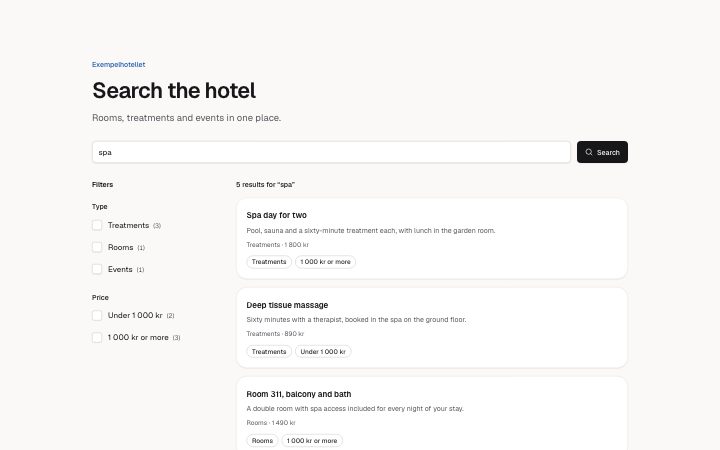
Finding things: a results page with checkbox facets whose counts follow each other, active filters you can remove, and a no-results page that offers a way on.
1 screen
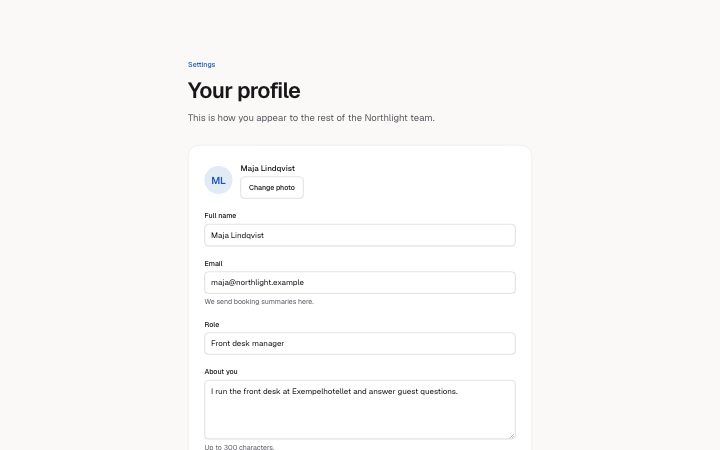
Profile, notification preferences and the danger zone: the forms every account has.
3 screens
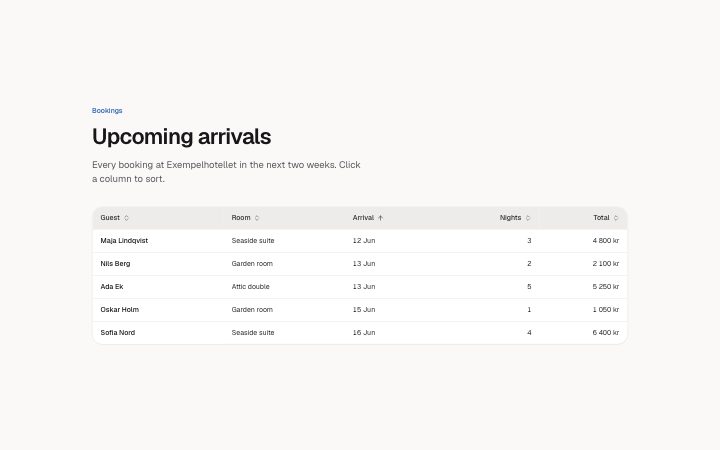
Tables, filters and pagination: the parts of every list screen, with their empty, loading and error states.
3 screens
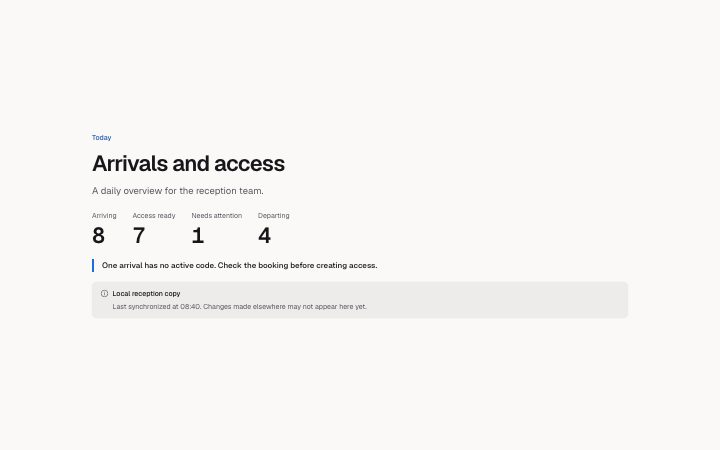
Daily counts and access records with source freshness, explicit validity and recorded history.
2 screens
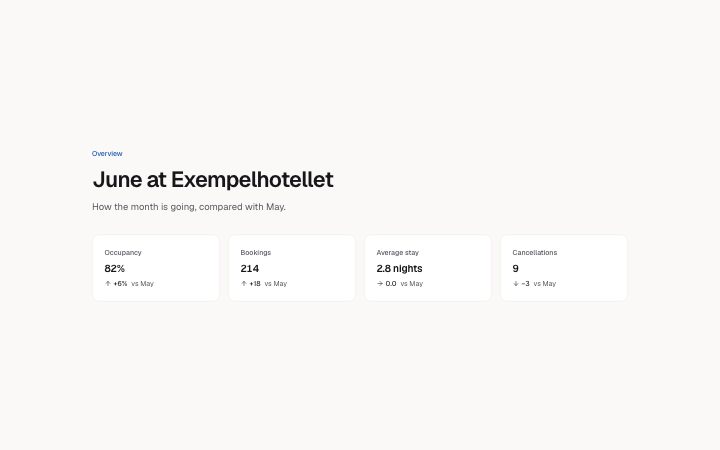
Figures and charts for the first screen after sign-in. The activity feed is the Activity log block.
2 screens
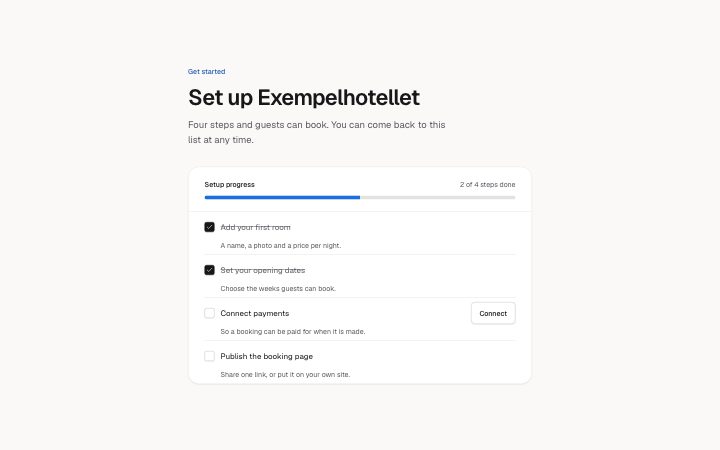
A welcome, a checklist and a step header: getting a new account to its first result.
3 screens
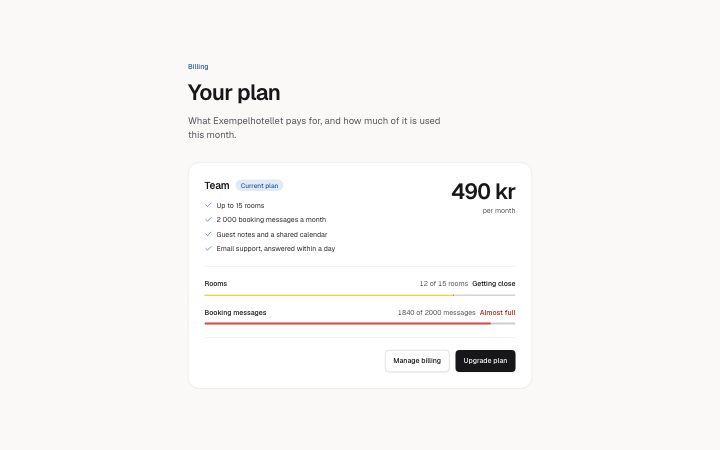
The plan with its usage, and the invoices: what an account needs to see about money.
2 screens
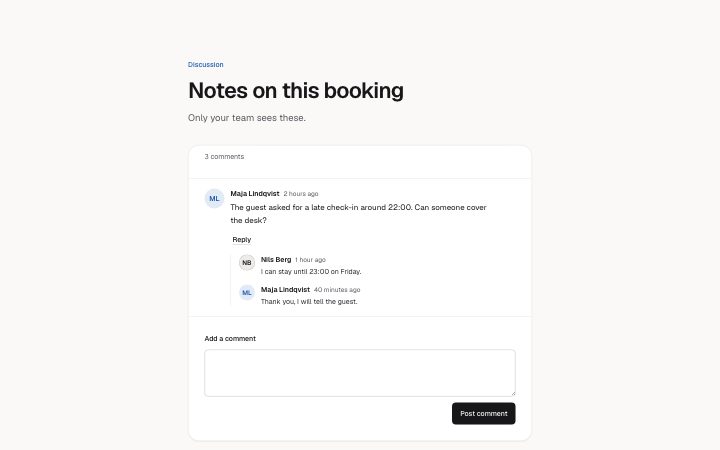
A discussion between people on a record: comments, replies and the composer. For an assistant conversation see Assistant.
1 screen
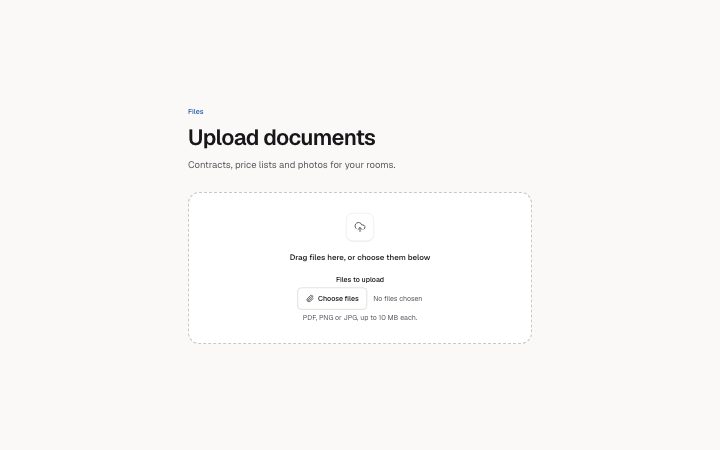
Getting files in and knowing where each one is: the drop zone and the list with upload status.
2 screens
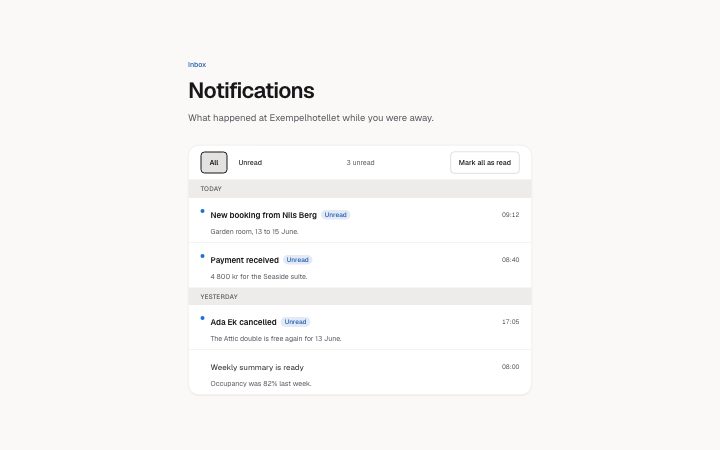
The inbox: what happened, grouped by day, read and unread. The preferences are in Settings.
1 screen
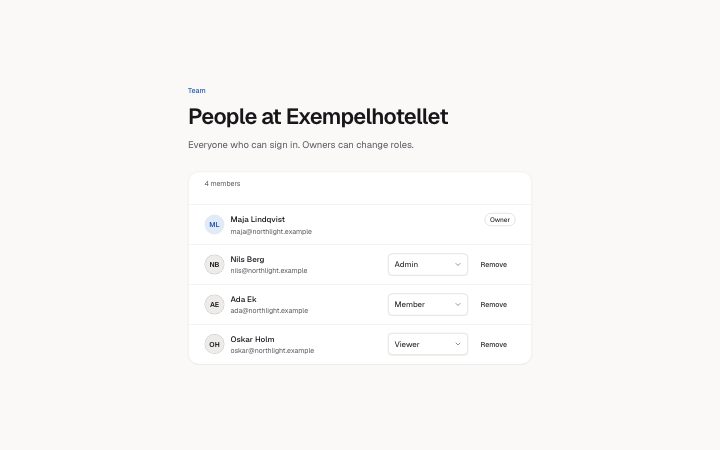
The people on an account: the member list with roles, the invite form and the invites still waiting.
3 screens
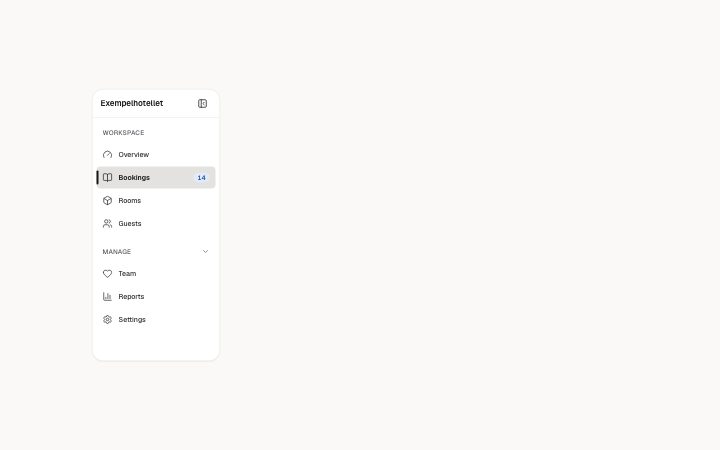
The frame around every screen: sidebar navigation and the top bar with breadcrumbs and the account menu.
3 screens
Assistant
The thread, the composer, tool calls and approvals that give people a clear choice with a recommendation. Same tokens as the rest of the app.
See the assistant screensAdd a late check-in option to the booking form.
I found the form in booking-form.tsx. There are two ways to do it.
Choose how guests set their arrival